Create Referrals
From within an application
Open an existing application and scroll down to the "Referrals" tab and expand.
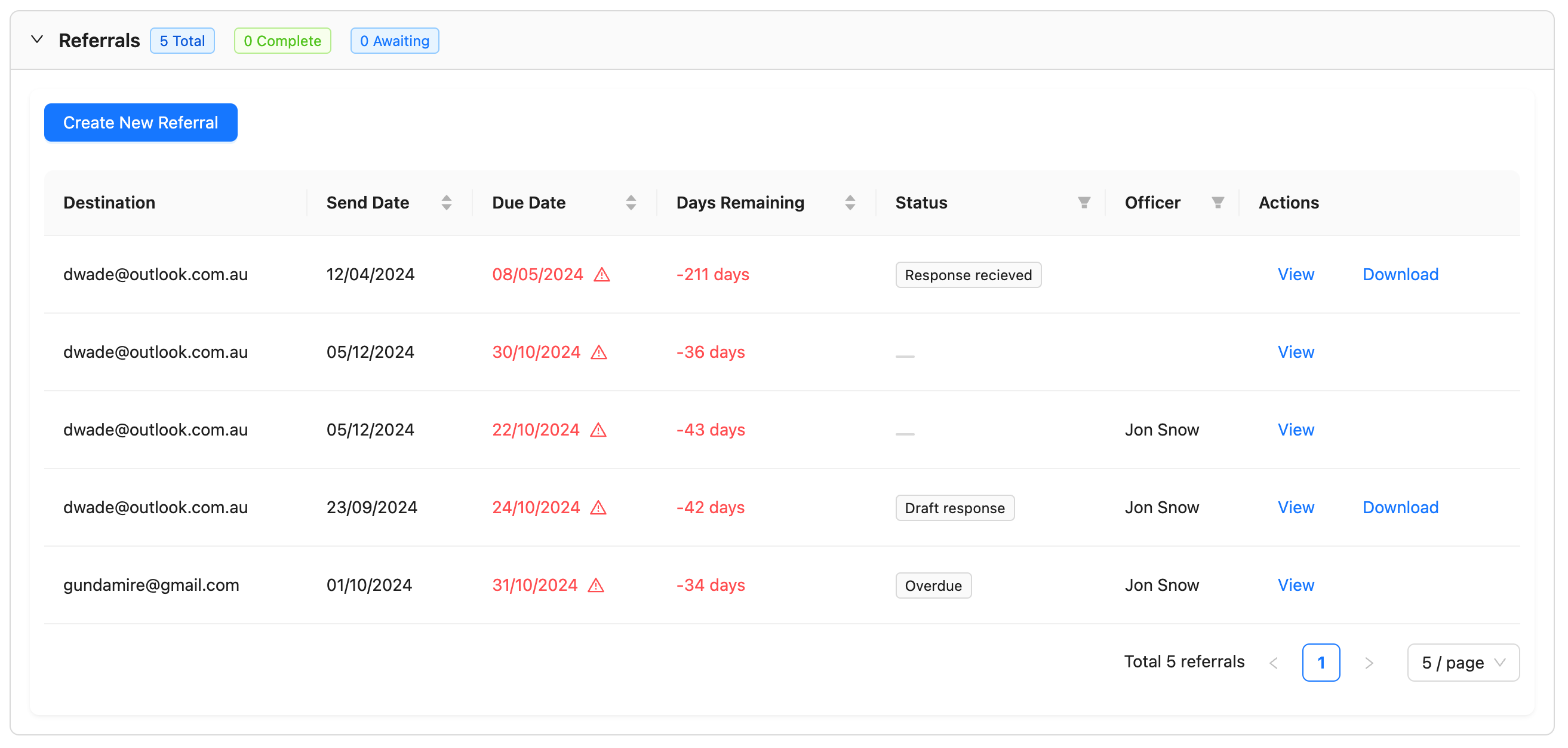
Click on the "Create New Referral" button.
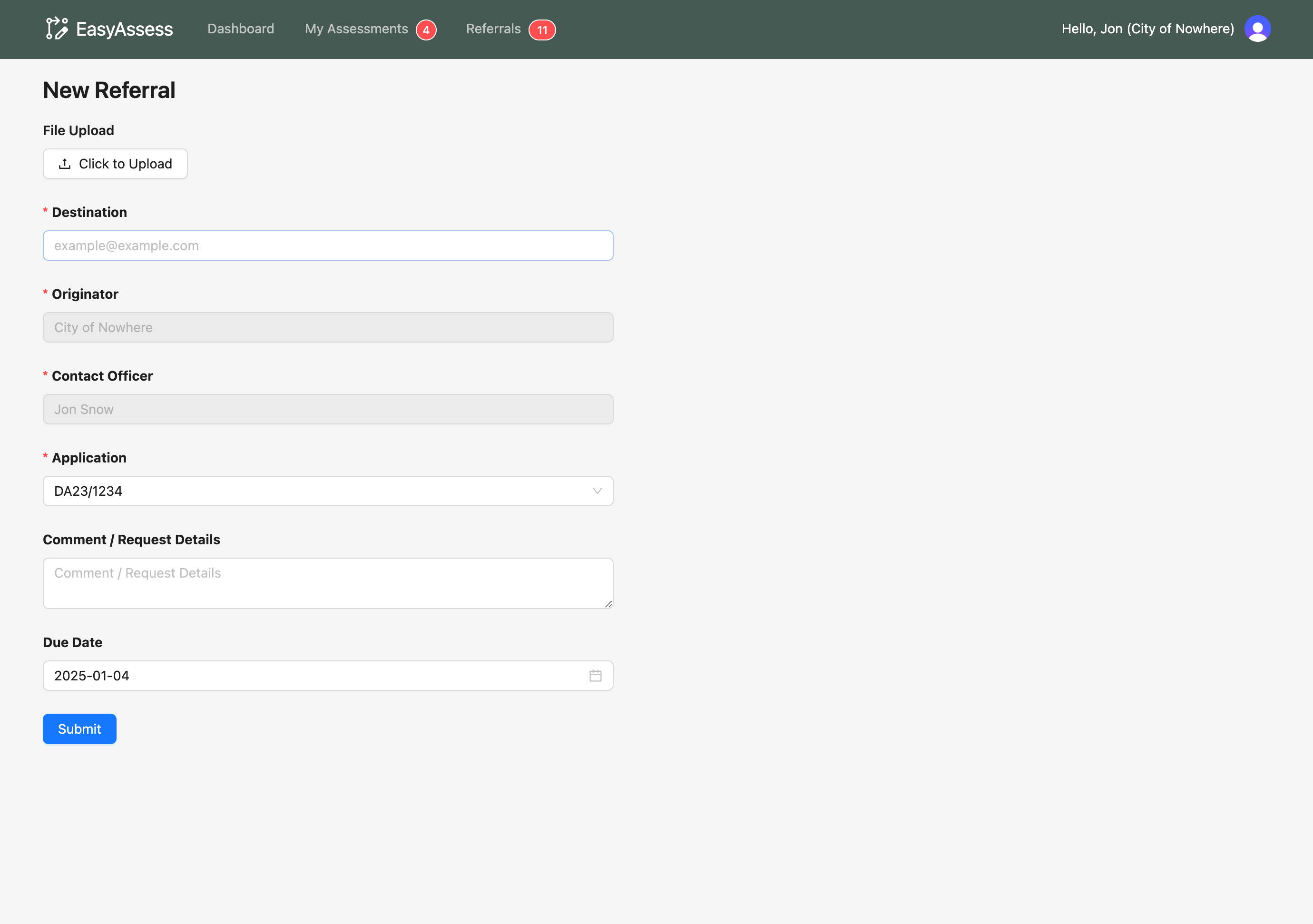
Fill out the form as appropriate, with the following fields:
- File upload - this will be attached the referral and available for the recipient to download.
- Destination - the email of the individual or mailbox this referral will be sent to.
- Application - this should be pre-filled with the application ID.
- Comments - additional comments and notes can be attached to the body of the referral.
- Due Date - this is the due that that the referral will track. For more information, see referral reminders.
Once all information has been provided, click "Submit".
You will be redirected to the My Referrals tab.
For more information on viewing and managing referrals, see viewing referrals.
From the My Reviews tab
On the top navigation bar, click "My Referrals"
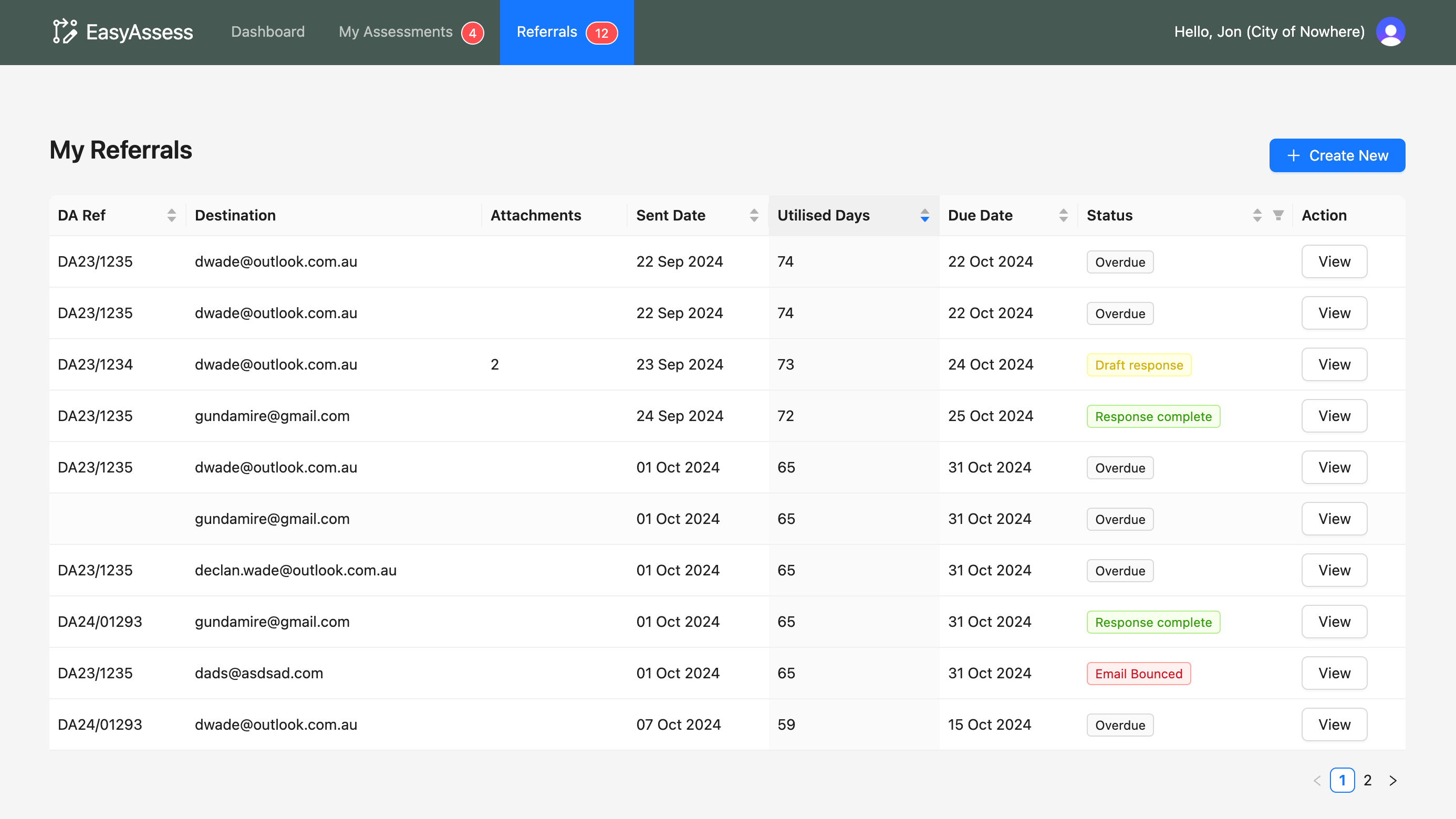
Click on the "Create New" button above the data table.
Fill out the form as appropriate, with the following fields:
- File upload - this will be attached the referral and available for the recipient to download.
- Destination - the email of the individual or mailbox this referral will be sent to.
- Application - at least one application you have been assigned should be selected here. Applications which are under review or have been determined will not appear in this list.
- Comments - additional comments and notes can be attached to the body of the referral.
- Due Date - this is the due that that the referral will track. For more information, see referral reminders.
Once all information has been provided, click "Submit".
You will be redirected to the My Referrals tab.
For more information on viewing and managing referrals, see viewing referrals.